Free | yours to keep
You work hard all week, and still, come Friday, you cannot quite say where the hours went. This free little tool makes them visible, on both sides: work burns down like a fuse from the hours you set, and your life fills up toward the hours you said it should get. Walked the journey? Hand it your document and it sets up both sides from your own words.
Get the free toolIt works the moment you open it, no account, and runs on its own on your computer once you give it 15 to 30 minutes. Already have a system of your own? It slots right in.
The whole dashboard, top to bottom: the two sides of your week, your life in the four languages with the small things you are growing, your release items counted by name, and where your browser hours went.
Before you start
Logging by hand works in 30 seconds. The automatic version is one setup, and this is what it takes. Every link is here, so you never have to go hunting.
The free app that sees which app is in front, on your machine only. Open source, no account, and nothing it sees leaves your computer.
Click Download on their site and pick your Mac or Windows version. On a Mac, drag it to Applications, then let it into System Settings, Privacy & Security, Accessibility, so it can see which app you are in.
activitywatch.netThe tracker's brain. Claude does the whole setup for you, and afterwards it is how you change anything: rename a bucket, move your goals, fix something that landed in the wrong place.
Any paid plan works. You want Claude Code, the version that runs on your own computer and can open your folders, rather than the chat box in a browser. It's what the tracker is built on and where the course teaches it, but any capable AI coding tool can run it too.
See the plans Install Claude CodeWhat the little background job is written in. On a Mac it is already there, or it arrives the first time your computer offers to install its Command Line Tools. Say yes to that: it is free, it takes a few minutes, and it happens once.
On Windows, download it and tick Add python.exe to PATH while installing, which is the box everyone misses.
python.org (Windows)The tracker never uses Git. The Claude app does: point it at a folder on your computer and it stops with "Git is required for local sessions" until Git is there. So you install it once and then forget it exists.
On a Mac, one line in Terminal gets Git and Python 3 together: xcode-select --install. You never make a GitHub account and you never type another Git command.
Fifteen if everything goes smoothly, thirty if your computer asks for Git or the Command Line Tools on the way. Either way you only do it one time. After that it refreshes itself every 20 minutes, on its own, and you set your cap once a week.
Most of that is waiting for downloads. The part where you type is short, and Claude tells you exactly what to type.
Your hours live in a plain file on one computer, and for most people that is where they should stay. Add this only if you want the same hours on a laptop and a desktop, in a database you own.
The folder already carries everything for it. Make a free account, then ask your system to plug it in: "set up the optional Supabase sync for the tracker." Claude creates the tables from the SQL files that came with it, fills in the three values, and points the dashboard at the new home. Say "put the tracker back to local" to undo it.
supabase.comA free browser add-on so the dashboard can name the exact sites your hours went to, rather than guessing from window titles. It sends the active tab to your own computer only. Skip it and everything still works.
Chrome, Brave or Edge | Firefox
Nothing beyond the Claude plan you already pay for. ActivityWatch is free, Python comes with your computer, the browser add-on is free, and the tracker is free. There is no account to make, no card to enter, and nothing here bills you later. You do not need GitHub, and you do not need Homebrew. If a search result or a chat window tells you otherwise, see the questions further down.
The setup, step by step
Written for someone who has never installed anything like this. You do not need to understand the steps, because the folder carries a full setup guide and Claude reads it for you. This is here so you can see what is coming, and so you know what to say at each point.
Grab it here, then unzip it. Move the folder out of Downloads: your user folder is the easiest place, the one with your name on it. A short path makes Claude's life easier, and you will actually find it again next week.
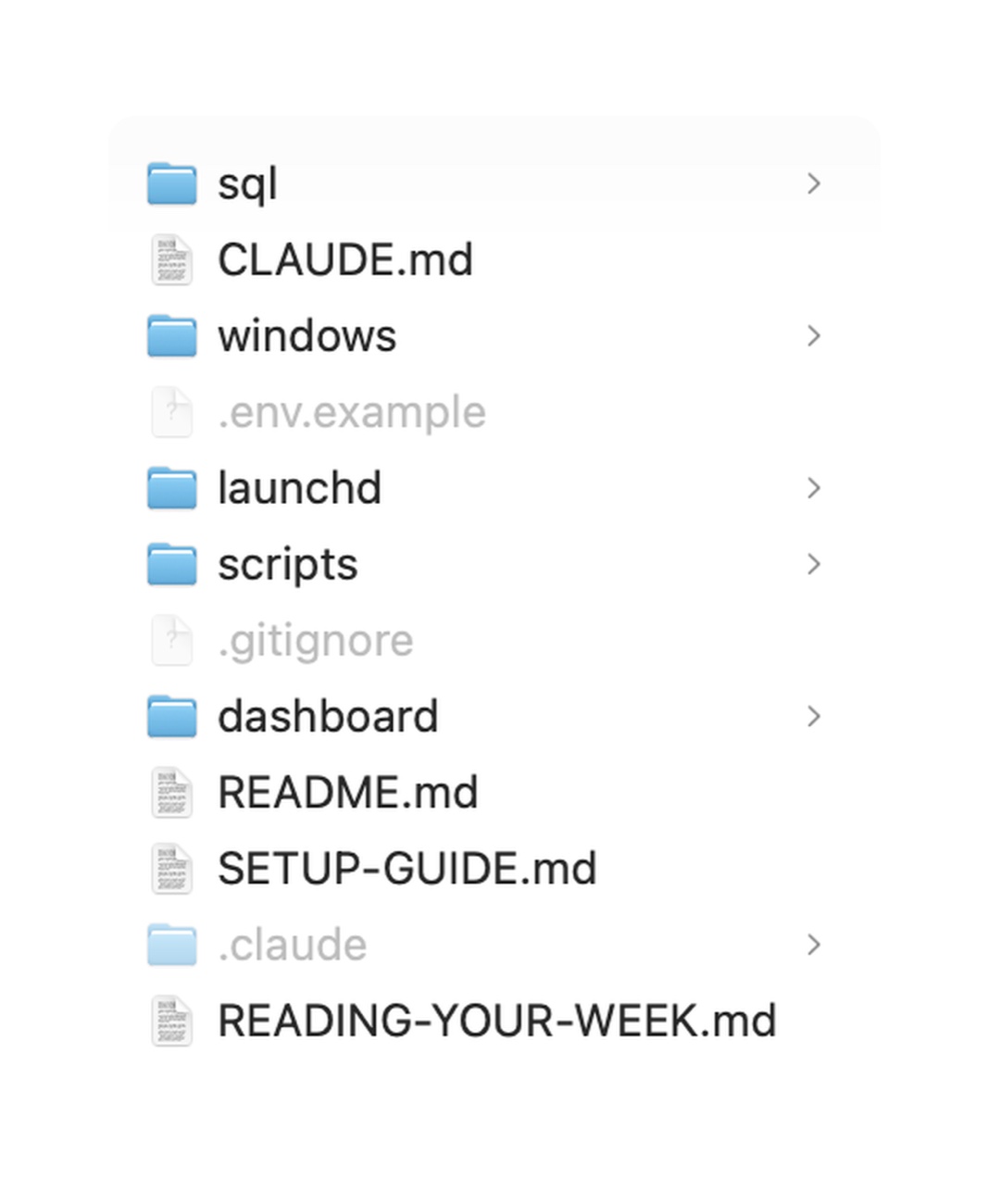
Unzipped, it looks like this. The SETUP-GUIDE and CLAUDE.md in there are what Claude reads so it knows how to install everything, which is why you do not have to.
Open the dashboard folder and double-click index.html. It opens in your browser and works right now: set your cap, log an hour, watch the fuse move. Everything you type is saved on your machine. That is already a working tracker, before you install a single thing. Everything below just makes it fill itself.
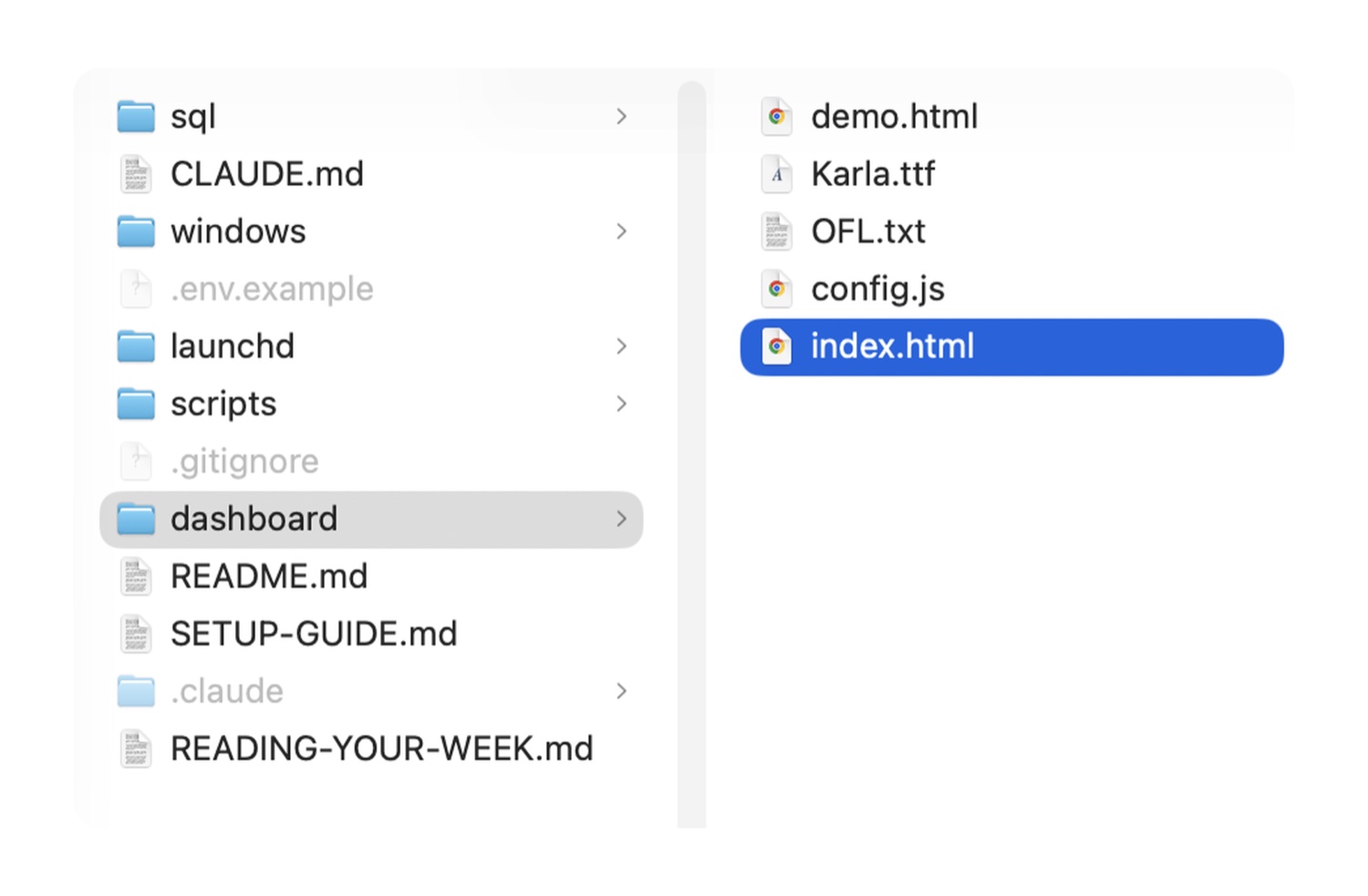
Curious what it looks like full of numbers? Open demo.html in the same folder: the same page with example data, saving nothing.
The Claude app will not open a folder on your computer without Git installed. It says "Git is required for local sessions" and stops there, which is a confusing wall to hit on your first try.
Clear it before you start. Open Terminal (Cmd+Space, type "Terminal", Enter) and type this, exactly, with no full stop at the end:
xcode-select --install
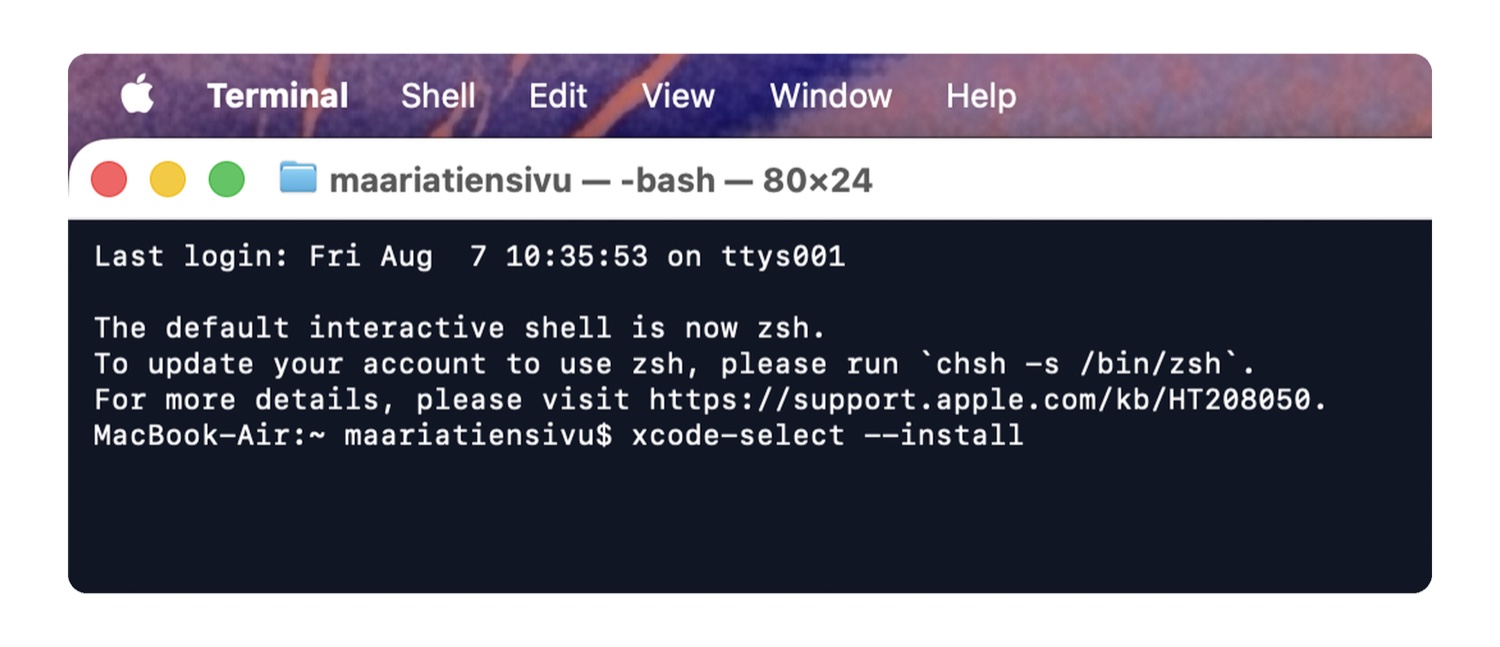
That installs Apple's Command Line Tools, which bring Git and Python 3 in one go, so this step and the Python one are done together. On Windows, download Git from git-scm.com instead.
Then quit the Claude app completely and open it again, or it will keep showing the same message. You never need a GitHub account, and you never type another Git command after this.
Open Claude Code and pick the tracker folder as the one it works in, using the folder button at the top. Then type this and send it:
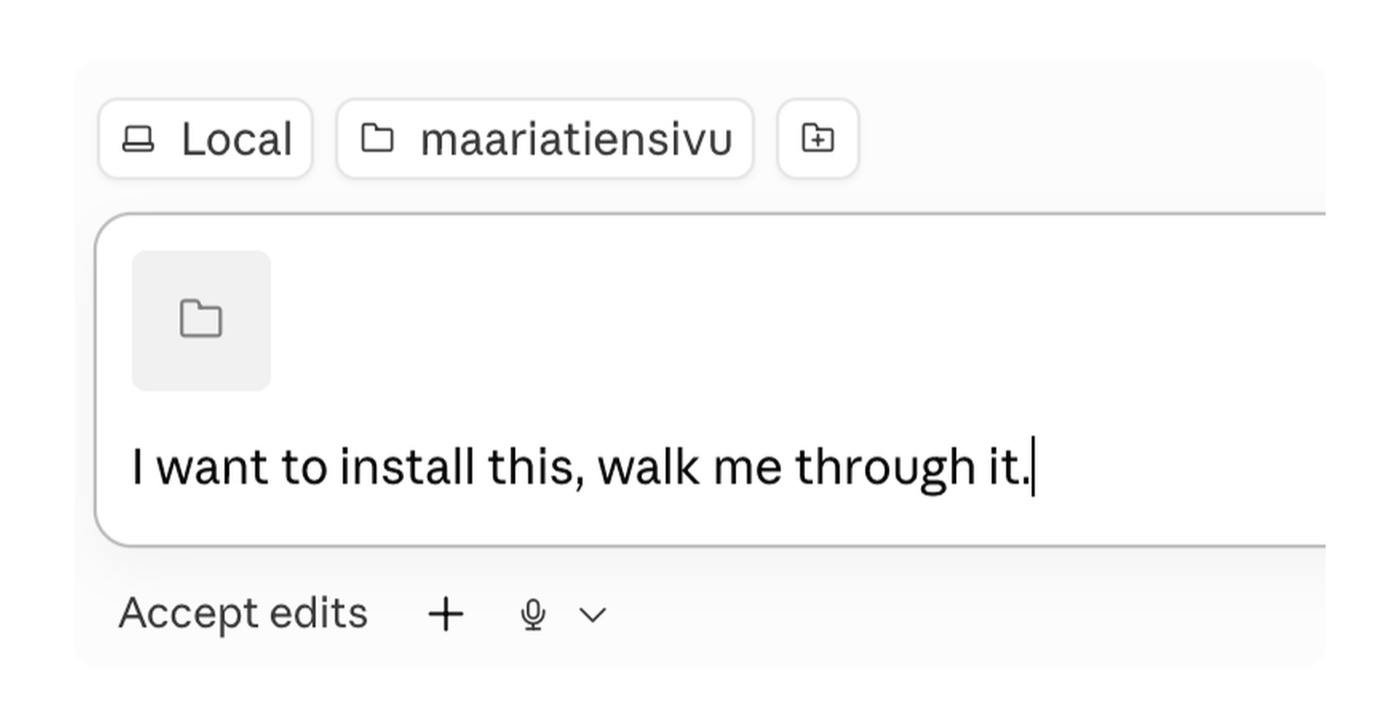
Claude reads the setup guide sitting inside the folder and takes over from there, one step at a time. When it asks permission to run something, say yes. Keep it pointed at the tracker folder rather than your whole computer, so it only ever touches what it needs.
Download it from activitywatch.net, drag it into Applications, open it. The first time, macOS asks for permission: System Settings, Privacy & Security, Accessibility, switch ActivityWatch on. Without that it knows you are working but never which app you are in. While you are there, add it to Login Items so it starts with your Mac and you never think about it again.
Click ActivityWatch's icon in your menu bar, open Modules, and tick aw-watcher-input. That is what lets the dashboard tell scrolling apart from working. Four ticks is what you are aiming for:
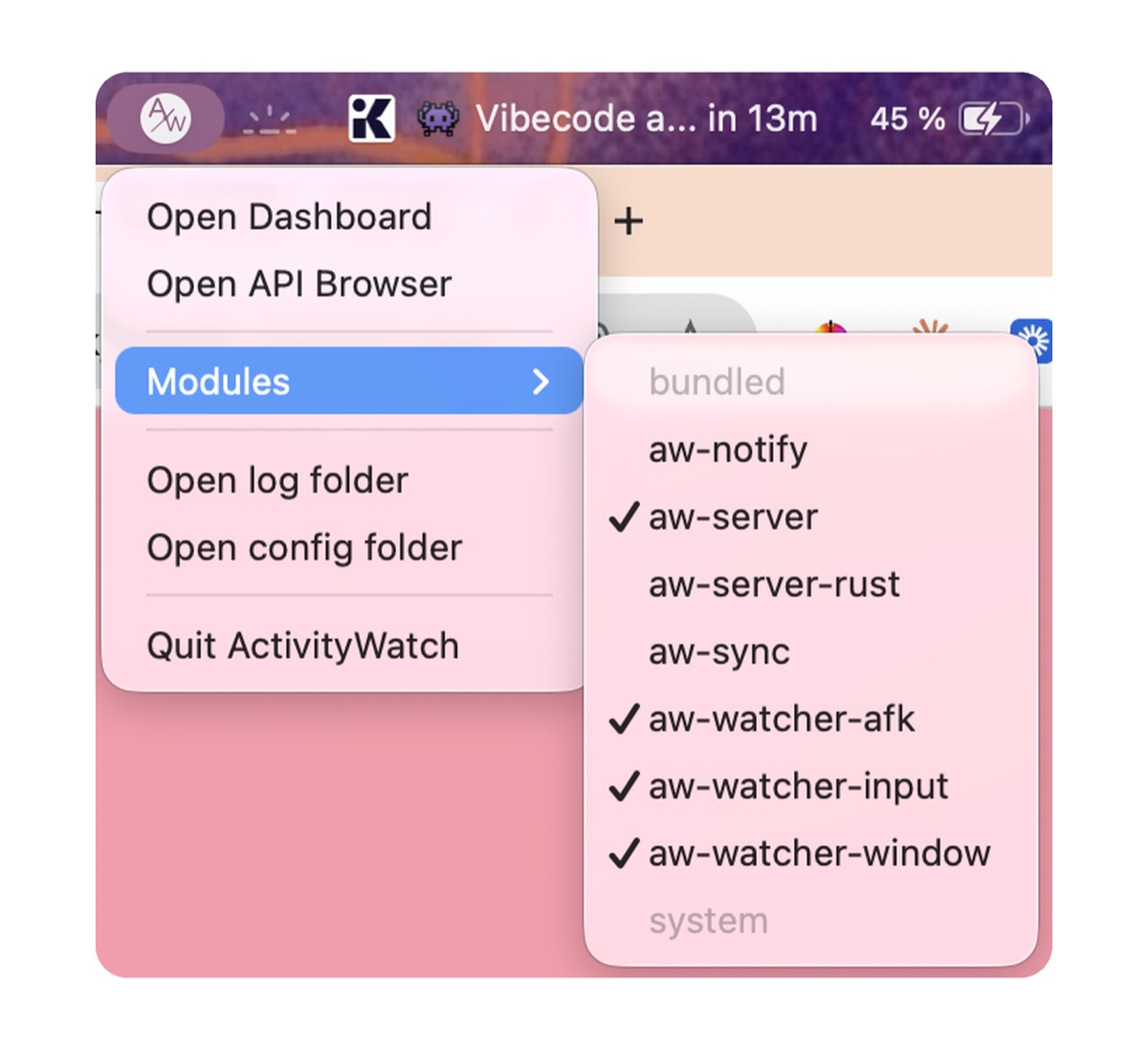
Then ask Claude to run the one command that makes the tick stick, because an ActivityWatch restart quietly drops it otherwise and nothing warns you. Leave aw-server ticked. You can ignore aw-notify, aw-server-rust and aw-sync, which belong to other setups. This is also the moment to add the browser add-on from the list above, if you want exact site names.
Say "turn on the capture" to Claude and it runs the two commands below for you. This is the moment the numbers become real, so it is worth watching what happens.
The first one shows you what ActivityWatch has seen and writes nothing. Run it and you should get a list of hours by bucket, and the sites your browser time went to. If that list appears, everything underneath is working.
1. Look first, this writes nothing:
python3 scripts/aw-ingest.py2. Now write it into your dashboard:
python3 scripts/aw-ingest.py --writeRun those from inside the tracker folder, in Terminal. The second one answers "wrote N blocks". Reload the dashboard and your real hours are on it.
An empty list from the first command means ActivityWatch is not running, or was only just installed and has nothing to report yet. Give it a few minutes of normal work and run it again.
Say "make it run automatically." Claude loads a small schedule that wakes up every 20 minutes and logs what happened, for as long as you are logged in. From here there is nothing to remember and no timer to start. You can pause it any time by asking.
Do not skip this one. This is the step that makes your hours arrive on their own from now on, instead of only when you go and ask for them. Without it, ActivityWatch keeps watching but nothing new ever reaches your dashboard, so the page quietly stops moving while everything behind it works. If you only half-finish this setup, finish it here.
Say "add the session data." Claude reads its own local session records and fills in the second line on the chart: how long each working session ran, how many messages you sent it, and how much of that time actually had you in it. The low numbers are the good ones. Ask it to backfill a past month if you want history from day one.
Now change it. Rename the buckets to your real work, set the goals you want, delete anything you will not use, put your own colours on it. Say it in plain words: "rename build to client work", or "give LinkedIn its own bucket with 7 hours a week." Then hard refresh the page with Cmd+Shift+R to see it.
The tracker ticks every 20 minutes, so it is a heartbeat rather than a stopwatch. You will open the dashboard, work for ten minutes, look again, and see nothing move. That is it working as designed. Wait one tick, reload the page, and only then start asking why. The dashboard shows when it last ran, in the top right.
You just installed one corner of it. The rest gets built exactly the way you built this: the website, the CRM, the client work and the content, running on your own machine and yours to change. It is the same root system either way, so build it yourself, or get a head start with your first version built for you, ready to use and yours to build on.

When it goes sideways
These are the real questions people asked while installing this together, in the order they hit them, with what actually fixed it. If you are stuck on something, it is almost certainly in here.
Screenshot whatever is confusing you, give it to Claude, and say what you expected to happen instead. It works on almost everything below, which is why this page is short on commands and long on sentences to say out loud. You never have to understand the fix to get it.
Yes, and it is the app asking rather than the tracker. Point the Claude app at a folder on your computer and it stops with "Git is required for local sessions" until Git is installed. Nothing in the tracker itself uses it, and there is no account to make anywhere.
On a Mac the shortest route is one line in Terminal: xcode-select --install. That installs Apple's own Command Line Tools, which bring Git and Python 3, so it clears this and the Python step together. On Windows, download it from git-scm.com.
Then quit the Claude app completely and open it again, or the same message keeps appearing. You do not need Homebrew for any of this, whatever a search result tells you.
Git keeps a history of every version of a project on your computer, so you can go back to how something was last Tuesday. GitHub is a website that stores those histories online, so a team can share one project, or so a copy exists somewhere other than your laptop. Some people also publish their websites from it.
Genuinely useful once you are building more, free, and completely unrelated to the tracker.
Yes, accept it. It is free, it comes from Apple, it takes a few minutes, and it happens once. It brings Python 3, which the tracker needs, and Git, which the Claude app sometimes asks for.
Restart the thing you installed it for. Quit Terminal completely and open it again. Quit the Claude app completely and open it again.
Anything you install only exists for programs that started up after it, so a window that was already open will never see it. This one catches almost everybody, and it looks exactly like a failed install.
To check it worked, type git --version or python3 --version in Terminal. A version number means you are fine.
That is your Mac login password, the one you use to unlock the computer. Terminal hides it completely while you type, not even dots. Type it blind and press Enter. It went in.
Press Cmd+Space, type "Terminal", press Enter. On Windows the equivalent is Command Prompt: press the Windows key, type "cmd", Enter.
Terminal is just a plain text window for talking to your computer. It has nothing to do with Claude by itself, it is one of the places Claude can live.
Same Claude in all of them. The app is friendlier to look at, and most people starting out use that.
The terminal is the plain text window, and it changes less: when Anthropic redesigns the app, the terminal stays exactly as it was. That is why Maaria works there. It looks intimidating for about a week and then it does not.
The browser version wants a repository online, so it is the one to skip for this. Start wherever you are comfortable, and switch whenever you like. It is the same Claude either way.
Untested, honestly. It may well work, and nobody here can help you when it does not.
The tracker is built for Claude Code, and the line showing how much of your work actually needed you is read from Claude Code's own session records, so that half will not exist anywhere else.
Delete it, download it again from activitywatch.net, open the new one. Nothing else to do.
Either. Always allow means far less clicking. Allow once means you see every single thing before it happens.
While you are learning, the clicks are worth it. Each prompt is Claude telling you it is about to touch your computer, and reading a few of them teaches you more about your own machine than any guide will.
Wait 20 minutes and reload the page, because the tracker logs on a 20 minute heartbeat and a fresh install genuinely has nothing in it yet.
If it is still empty after a tick has passed, the most common reason is that the schedule in step 8 never ran. Installing ActivityWatch makes it watch, and loading the schedule is what moves what it saw into your dashboard. Without that one step the page sits at zero forever while everything behind it works perfectly, which looks exactly like a broken install. Say to Claude: "is the 20 minute schedule actually running?"
Once it has run even once, the dashboard tells you itself. Look top right: it prints when the automatic data was last written, and says so plainly if nothing has arrived in the last 40 minutes. Before that first run there is nothing to print, which is why a half-finished setup looks so much like a working one.
The other two causes are the folder having been moved after setup, and ActivityWatch not actually running.
You moved the folder after setting it up. Point Claude at the new location, then tell it the folder moved so it can update the paths it saved earlier. Say it plainly: "I moved this folder, please update the paths."
Hard refresh: Cmd+Shift+R on a Mac, Ctrl+Shift+R on Windows. A normal reload hands you the old page back out of memory.
If it still looks the same, close the tab completely and ask Claude to open it again. That fixes it the rest of the time.
Ask Claude: "open the dashboard in my browser."
Opening it in your own browser rather than in a panel inside the app is worth doing anyway. Then it lives in a tab next to everything else, and you can glance at it without going anywhere.
Tell it which one you mean: "I mean the time tracker dashboard in this folder."
Claude can see whatever folder you point it at, so during setup keep it pointed at the tracker folder and nothing wider. Smaller folder, fewer surprises. This is also the reason to keep the folder tidy: whatever is in there, Claude can read.
Say "we are not done, let's carry on." It wraps up early sometimes, especially after a long stretch of steps. It picks straight back up where it stopped.
Look at the top of your screen for its icon in the menu bar, near the clock. If the icon is there, it is running. On Windows it sits in the system tray.
You can also just ask Claude to check that everything is recording, and it will look for you.
Expected, and not a fault. Everyone's computer is set up slightly differently, and Claude makes slightly different choices in each install, so no two of these end up identical even from the same download.
What you downloaded is a starting point that becomes yours, rather than a finished product that arrives the same for everyone. Screenshot whatever looks wrong and hand it to Claude.
An ActivityWatch restart dropped the input module, which happens after a reboot or an update. Tick it back on (menu bar icon, Modules, aw-watcher-input) and ask Claude to run the make-it-stick command again.
Your hours and your away detection were never affected. Only the scrolling detail has the hole.
As many as you want. Twenty, a hundred, every website separately if that is useful to you. Tell Claude what you want tracked and it adds it.
Ask your Claude. If you already work with it, it knows your business: "based on what you know about my work, what should I be tracking?"
Take its suggestions, cut the ones that are wrong, keep the rest. That is a better starting list than anything a stranger could write for you.
It guesses from the app at first, and you correct it out loud: "always log LinkedIn as sales, not marketing." It sorts it that way from then on.
Watch it for the first few days and correct anything that lands in the wrong place. Those definitions are genuinely yours, and the tracker only knows them once you say them.
Flip it. Tell Claude to treat your number as a goal to reach rather than a ceiling to stay under. Same logic, opposite direction, and the dashboard fills up instead of burning down.
Yes. "Remove the four languages block, I do not want it." Same for the manual logging box, the goals, or anything else on the page. It is your dashboard, and nothing on it is fixed.
No. It sees that Google Meet was the app in front, and that is all it sees. It never listens, never reads a page, never takes a picture of your screen, and never records a word you typed.
Yes, and most people do it within the first hour. Give Claude your brand colours and ask. It is your page, sitting on your computer, so there is nothing to break.
You do not have to. Once it is installed it keeps logging every 20 minutes until you delete it, whether or not you ever look.
The looking is the only habit. Keep the dashboard open in a browser tab, or bookmark it and click it with your morning coffee. If a bookmark ever opens empty, ask Claude to open it for you.
Yes, with the optional cloud sync included in the folder, which puts your hours in a database you own. Skip it and everything stays in one plain file on this machine, which is the default and what most people want.
Ask it to go through your past Claude transcripts and tell you what your working habits have actually been. Maaria ran this on her own history and found things about how she works that she had no idea about.
You can also backfill the chart from an earlier month, so the tracker starts with history instead of an empty week.
Still stuck? Send the screenshot to maaria@thefourlanguages.com and it gets answered.
What you can ask it
Ready-made instructions Claude follows when you say the word. They live in the folder as plain text, so you can open them, read exactly what they will do, and change any line you disagree with.
Say: save session
ActivityWatch knows when you worked and which app you were in. It cannot know what the work was, so a whole day inside Claude arrives as one undifferentiated block. This routine fills in the meaning: it reads today's sessions, writes the machine line, then asks you what the work actually was and lets you correct anything sorted wrong.
It also asks about your calls, on purpose. Talking is not typing, so a 90 minute conversation comes back as a few minutes of Zoom and ten quiet minutes read as away. Calls are the one thing the clock gets wrong in a predictable direction, and it is always too low.
Already have your own save routine? This one steps aside and gives you the single paragraph to add to yours instead of replacing it.
Say: review my week
Run it Friday or Monday. It says your week back to you first, plainly: hours against your cap, each bucket against its goal, and whether your life got any hours at all. No interpretation yet, just the numbers, from the record rather than from memory.
Then it names one pattern it can see, and asks whether it matches the week as you lived it. Your read of your own week wins over the numbers, every time. A review that names four problems changes nothing, so it names one.
Then you set the coming week: one sentence about the plan, and goals per bucket that add up to your cap.
A file called READING-YOUR-WEEK comes with it, holding the seven patterns the weekly review looks for. The build-heavy month with no sales in it. The bucket whose number will not fall, three weeks running. The evening hour that costs more than it makes. The week of calls that shows one sales hour, because the clock cannot hear a conversation. Read it once and you will start seeing them in your own numbers without being told.
Two routines came free with a time tracker. A whole system built this way has one for the parts you dread: the follow-up you forget, the invoice you put off, the proposal you rewrite from scratch every time. If you want to build the whole system, start here.
# already have a root system? one line wires it in
- Work hours: when I say "log a block" or "how are my hours",
read the-10-hour-week's scripts and show me the week vs my cap.
Free, and already written
If any of the setup above felt like a step too far, start here instead. Make a free account and you get the install guides, the how-it-works walkthrough, and the pieces of Claude Code that everyone hits in their first week. No purchase, no card.
Start here
The install, from nothing to a working setup, written for someone who has never opened a terminal. This is the one that answers most of what the questions above are really about.
How it works
What Claude can actually see, how it picks up a change you made in another app, and why the folder you point it at matters so much. The thing that makes the mystery-dashboard problem stop happening.
Free course
The thinking underneath all of it: Mind, Body, Heart and Soul, and what it means to build a business that leaves room for a life. Free, no purchase required.
The whole loop
Six moves you can run on their own, or fold into a bigger system later. You live the days; the tracker keeps what is true about them, and nothing about your screen ever leaves your computer.
Once a week, you set the hours you actually want to work. Not a target to beat, a ceiling to stay under. The number is yours, and you can change it any week your life changes.
A small free app called ActivityWatch sits on your own computer and notices when you are working, so you never touch a timer. It never takes a picture of your screen, and nothing about your screen is sent anywhere.
Your week has two sides on one screen. Work counts down from the hours you set, green while there is room and red once you have spent them, so you feel the week going instead of finding out on Sunday night. Life counts the other way, filling toward the hours you said your life should get, in the four languages.
Build, marketing, sales, client. Only a few plain values reach your own database: how long you worked, which bucket, and the name of the app you were in. Admin and your own life sit outside the cap.
At the end of a week you can see where your hours really went, and whether the work that matters got your best attention or what was left after everything else. The tracker does not judge the mix. It just makes it honest, so the choosing is yours.
Each working session shows the hours it ran, the messages you typed into it, and how much of its running time had you in it. When you step away and the work keeps going, that time counts as the machine's, not yours. The low numbers are the good ones: they mean the work ran without you standing over it.
Set your cap once a week, let the tracker fill on its own, and when the fuse runs red, close the laptop. The evening is yours, and you can believe you are actually done.
The point is that when the week is spent, you can stop and believe it. It is a Body practice, hours and rest and the shape of a week, and it runs on your own computer, the first corner of a system that could hold the rest.
A peek inside
Plain files you own and can open in anything. It is self-contained: a small tool that runs on its own, and slots into a bigger system later, if you build one.
The promises
Built with the same care as everything else you rely on, because it is your hours and your evenings on the line.
No screenshots, ever. Your pages, your addresses, and your window titles never leave your computer. By default nothing leaves it at all: what is kept is small and lives in a file on your own machine, the hour totals, their bucket, the app name, and which sites your browser hours went to. Only if you turn on the optional cloud sync does that reach a database you own. Nothing, ever, to any outside company.
The fuse counts down, it does not count up. It exists so you can stop, not so you can squeeze more in. A green week that ended early is the tool working, not a quota left unfilled.
Your own life never drains the fuse. Admin and enjoyment are logged separately and counted separately, because the whole point is a week that leaves room around the work, not one that fills it.
It counts the real hours your laptop measured, never a guess. Off-laptop work is yours to add by hand. It would rather show you a smaller true number than a rounded-up one that lets you off the hook.
The same promises hold for everything else you build this way, because you own the files and they run on your machine. Build it yourself at your own pace, or get a head start with your first version built for you, ready to use and yours to build on.
Set a cap once a week, let the tracker fill on its own, and when the fuse runs red, close the laptop. The evening is yours, and nothing about your screen ever left your computer to get there.
Get the free tool