Your repetitive work, handled
Stop repeating yourself. Build skills and automations so you can focus on the work that actually needs you.
After this module: You have custom commands, automated workflows, and a content engine that asks you the right questions.
This module's pack
Module 8 pack: skills, integrations, content
Every automation skill, the /system-audit workflow, plus the connector guides for this final module.
See what's inside (70 files)
Skills (33)
Make things: /branded-post, /linkedin-carousel, /product-carousel, /story-carousel, /life-carousel, /ig-post (posts and carousels) · /flow-deck (interactive decks) · /ai-image (on-brand images) · /yt-thumbnail (video thumbnails) · /video (edit and caption clips)
Run your content: /content-analysis (find your pillars from past posts) · /content-vault and /vault-push (catch and file ideas) · /queue and /schedule (draft to published) · /social-posting (publish or schedule posts, manually or through any scheduler) · /youtube-publish (upload a video with its thumbnail to your channel, publish now or scheduled) · /youtube-pulse (your channel stats and the comments waiting for a reply, in your morning sweep) · /campaign (a themed run of posts)
See what is happening: /trend-scout (what is moving in your space) · /competitor-scan (what others are shipping) · /social-pulse (how your posts landed) · /calendar-pulse (your week at a glance)
Close the loop: /weekly-recap and /weekly-review (what happened, what next) · /session-recap (turn a recorded session or Q&A into a shareable web page with per-question audio) · /transcript (turn a call recording into CRM notes) · /transformation-log (save real client wins, with consent)
Inbox and admin: /gmail-sweep (triage your inbox) · /slack-digest (catch up on channels) · /accounting-sweep (file the expense invoices you receive, every morning, on trust) · /invoice-system (turn each sale into a branded invoice you approve before it sends) · /skill-cleanup (strip bloat from your skill files, one clean method each)
Workflows (1)
/system-audit · one command runs a full parallel audit of your whole system
Media and publishing scripts (3)
The two scripts /video and /session-recap run on: transcribe-video.sh (Gemini transcription with timecodes) and group-call-clip.py (cut a clip that shows only you). The YouTube tools (scripts/youtube/) that /youtube-publish and /youtube-pulse run on, set up once with Guide 82b. Plus transformations.template.md, the client-wins store /story-carousel and /transformation-log read from.
Build guides (10)
Step-by-step, one per piece: Writing skills · Setting up integrations · Postiz social media · Publishing to YouTube · Slack connector · Notion connector · Krisp connector · Google workspace connector · System audit · Google workspace reference
Add-ons (2)
The Routine Builder, turns your recurring work into routines that run on their own and reminders that reach you on time (SETUP-GUIDE.md · routine-builder.md)
The Invoice System engine, everything /invoice-system runs on: the renderer, the scheduled runner, a config template, and your own tax rules file, default no tax (invoice-system/ · SETUP-GUIDE.md · README.md)
Unzipped it and something looks missing?
Your skills install into a folder named .claude. It starts with a dot, so your Mac or PC hides it by default. Nothing is missing. To show hidden files on Mac, press Command + Shift + . (period) in Finder. On Windows, open View → Show → Hidden items in File Explorer.
👇 After this module
Your repetitive work is automated. Custom skills, content engine, optional Postiz scheduling. The things you do every week, your system handles them now.
What you'll do in this module
- Custom skills and commands, your shortcuts for repeated work
- Workflow automation, multi-step routines that run themselves
- Your content engine, two modes that fit your energy
- Posting on social media with Postiz, the self-hosted scheduler you run from the terminal
- Other connectors and what to do with them, Slack, Notion, Krisp, Google Workspace, each with a useful skill
- Scheduled work that runs without you, the three ways to schedule jobs and a worked example: the daily sales brief
- What to keep, what to ditch, what to build, the framework for what stays and goes
- Skills, helpers, teams, and workflows, which kind of help each job needs
- Full system audit (mandatory), the graduation gate for Part 2
- Your money, handled, the invoices you receive and the ones you send, both on your terms
What you'll leave with
- Your custom skills running on one-word triggers
- Workflows that run end-to-end without you
- A content engine in two modes, fitting your energy
- Optional: Postiz scheduling Instagram and LinkedIn from your terminal
- A clear map of when to reach for a skill, a helper, a team, or a workflow
- A green system audit (installs, integrations, Supabase, Resend, Stripe, edge functions, CRM, website, security, GDPR)
Why this matters
When you started, you had a personal system. By now you have a back end, a public face, and a CRM. In this module you cut the busywork. The things you keep doing manually, you stop. The things worth your time, you keep. Your system absorbs the rest.
Start here
Lesson 1: Custom skills and commands →
Custom skills and commands 🪄
The third time you find yourself explaining the same process to Claude, you have crossed the line into skill territory. The first time, you were figuring something out. The second time, you were checking your work. The third time, you are paying a tax on your own attention that you do not need to pay.
A skill is a short markdown file. A name, a one-line description of when to use it, and the instructions Claude follows when you call it. That is all a skill is. The rest is what you put in the instructions.
The shape of a skill
Skills live in two places. Personal skills, the ones you use across every project, sit in ~/.claude/skills/. Project skills, the ones tied to a specific project (like your morning protocol or your CRM logger), sit in .claude/commands/ inside the project. Both are markdown files with a small frontmatter block at the top.
The frontmatter has three fields that matter. Name, the trigger word you type after a slash. Description, the one-line summary Claude reads to decide if your message matches this skill. Body, the actual instructions, in plain English, that Claude follows when the skill fires. Description quality is the difference between a skill that triggers when you want it to and one that sits there unused.
When to make one
Use the rule of three. The third time you say the same paragraph to Claude, write the skill. Not the first time (you are still figuring out the shape). Not the second time (you are still verifying). The third time. By then you know what the steps are, what the inputs are, what the output should be. The skill is just freezing that pattern so you do not have to re-explain it again.
Skills are not the right answer for every repetition. A skill is for the work that has a clear shape and a clear output. The questions you ask Claude during a brainstorm, the back-and-forth of a difficult email draft, the exploratory reading of a new dataset, those stay conversational. Skills are for the work where the shape is solved and the friction is the re-explanation.
A worked example
The /weekly-recap skill is a good first one for a solopreneur. Every Friday afternoon you want to know: what got shipped this week, who got a reply that I owe a follow-up to, which numbers moved, what is still open from the promises I made on Monday. By Friday at 4pm you are tired and the last thing you want is to think about the shape of that question. You want to type one word.
The skill body says, in plain English: pull the daily logs from this week. Cross-reference them against the CRM activities table. Surface the promises field for any contact where the due date is this week. Read the dashboard summary for the week. Produce a short markdown brief with five sections: shipped, replies owed, numbers moved, open promises, what to carry into Monday. End with a one-line emotional pulse based on what surfaced.
You write that skill once. You type /weekly-recap every Friday. The skill takes thirty seconds. The version where you re-explained the shape every time would take you fifteen minutes.
A moment with this
Open your last week of Claude conversations. Find three places where you said the same paragraph to set up the same task. Those are your three first skills. Write the easiest one now. The two harder ones can wait.
Go deeper
When you know which skill to write first, tell Claude: "Help me write a /[name] skill. I want it to do [the three steps]. The output should be [the shape]. Save it to .claude/commands/ in this project." Claude writes the file, you review, you run it, you adjust. The first version is rough on purpose. You sand it down by using it.
Workflow automation ⚙️
A skill is a single recipe. A workflow is a chain of skills (and small judgment moments) that runs end to end. The morning protocol is a workflow. The new-client onboarding is a workflow. The Friday content push is a workflow. Each one calls multiple skills in sequence, with decisions in between, and produces something you used to spend forty minutes assembling by hand.
One note on the word. There is also a specific Claude Code feature called Workflows that writes itself a recipe and runs many helpers on its own. We map it against skills, helpers, and teams in Skills, helpers, teams, and workflows.
The first workflows that matter for a solopreneur are the ones that happen every week. The protocol shape (morning, evening, Monday planning, Friday recap) gives you predictable rhythm without thinking about it. Once those are running, the next ones are the workflows tied to events (new sale, new lead, new conversation) where the chain has to fire reliably or something gets dropped.
How a workflow is built
You write a short markdown file that says, step by step, what should happen. Each step is either a call to a skill you already have, a piece of work for Claude to do directly, or a check ("if X then Y else Z"). The file lives next to your other skills. You trigger it the same way: one word.
The difference between a workflow and a skill is just length and the presence of branches. A skill that does three things in order is already a small workflow. A workflow with twenty steps and three decision points is, by the same logic, a long skill. Do not get stuck on the distinction. Build the thing, then look at it later and decide if it needs to split.
Three patterns to know
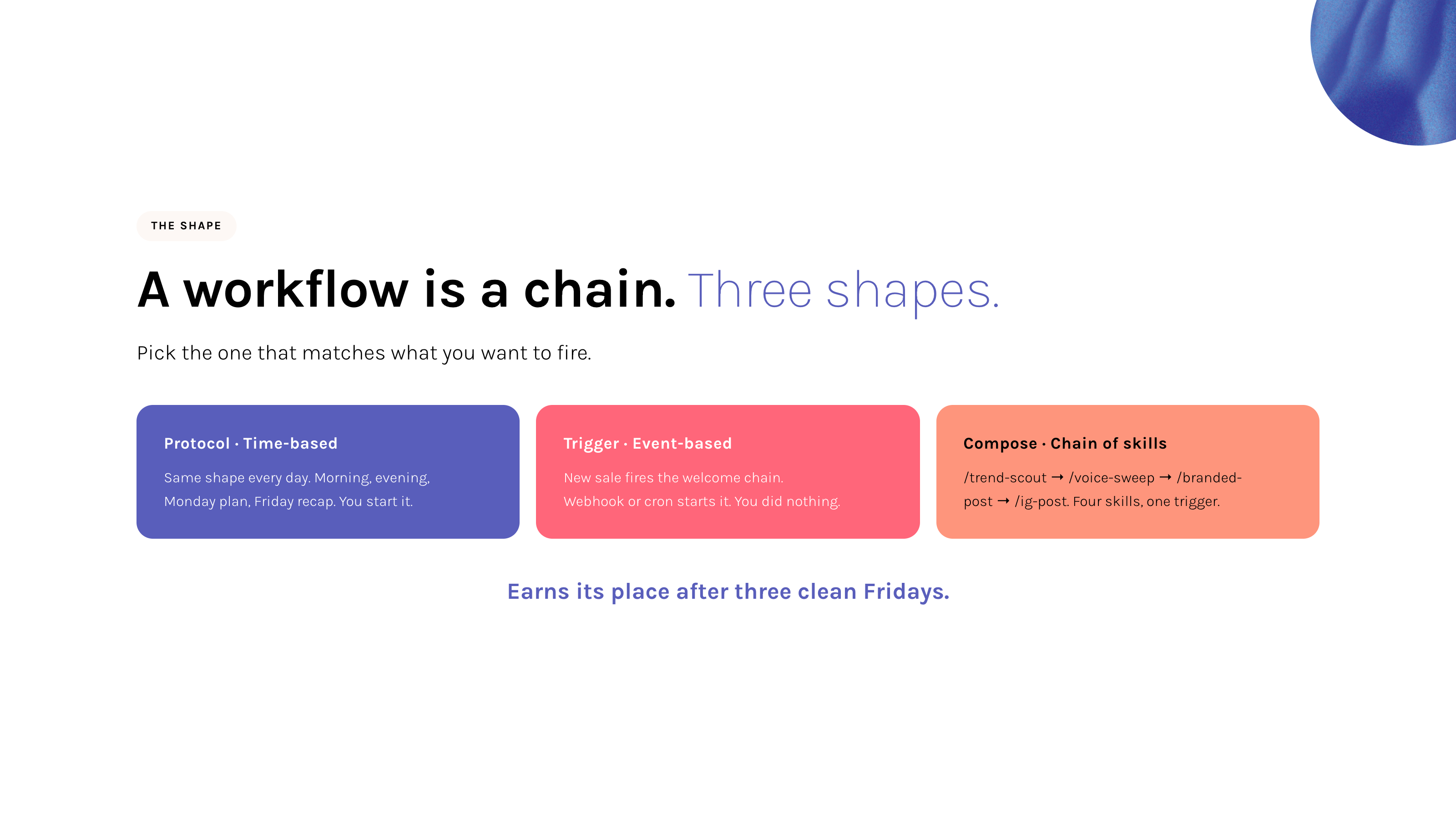
Protocol.
The fixed-time workflow. Your morning protocol runs the moment you say "good morning". Steps are predictable: read today's daily log, check the calendar, sweep Gmail, pull the dashboard, brief you on what is in motion, ask one question that sets the day. The file lives at .claude/commands/morning.md. Same shape every day, different content because the data is different.
Trigger.
The event-driven workflow. New course sale fires a webhook into Supabase. Supabase fires an edge function that adds the buyer to the CRM, queues their welcome sequence, drops a Slack notification, and emails you the receipt. You did not do anything. The trigger pattern depends on something OTHER than you starting it (a webhook, a cron, a hook in your settings.json).
Compose.
The chain-of-skills workflow. The Friday content push calls /trend-scout to surface what is hot in your niche, then /content against your last 30 posts, then /branded-post to generate the carousel, then /ig-post to schedule it. Four skills, one workflow file, one trigger word. The composition is the workflow. The individual skills stay reusable on their own.
When a workflow earns its place
A workflow earns its place when the chain has run cleanly three Fridays in a row. Before that, you are still tuning. After that, it is part of the system. The mistake is to write a 14-step workflow on day one and treat it as if it works. Build it skill by skill, run the first two together, then the first three, until the whole chain is reliable enough that you trust the output without watching every step.
A moment with this
Pick the recurring task that consumes the most of your week. Not the most painful one. The one that consumes the most minutes. List the three to six steps you do, in order. That list is your first workflow draft. Whether you build it today or in a month, having it written down already changes how the task feels.
Go deeper
When the step list is ready, tell Claude: "Build me a /[workflow-name] workflow that runs these steps in order. Pause for confirmation between any step that writes data. Stop and ask if anything looks off." The pause-and-confirm pattern is what keeps a workflow safe to run on a Friday afternoon when you are tired.
Your content engine ✍️
Most content advice tells you to batch-create, plan a month ahead, follow a rigid calendar. That does not work for solopreneurs. Your energy changes, your life changes, your ideas change. You need a system that moves with you.
Your content engine has two modes. You choose which one fits the moment.
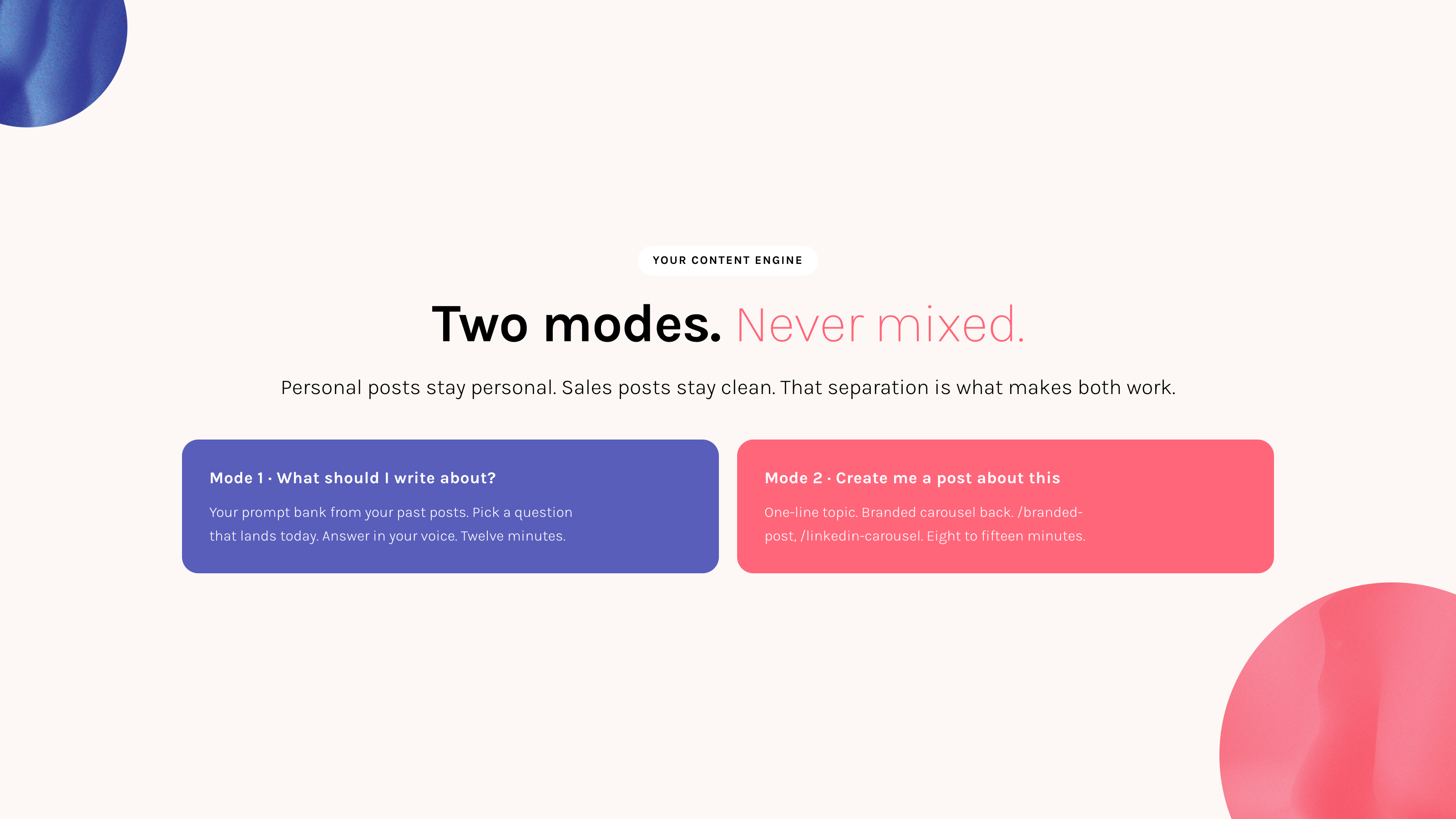
Mode 1: "What should I write about?"
Your system reads your past posts, finds what your audience actually responds to, and builds a bank of questions designed to draw out your best content. Not generic prompts. Questions based on YOUR data, YOUR patterns, YOUR top-performing posts. It asks you the right question. You answer. Your answer is the post. Your system formats it and schedules it. You never stare at a blank page.
Mode 2: "Create me a post about this"
When you need a branded carousel, a sales post, or a proof-of-value post, give your system the topic. It builds the visuals in your brand, writes the caption in your voice, exports the images, and schedules it. One prompt, published post.
The two modes never mix. Your personal posts stay personal. Your sales posts stay clean. That separation is what makes both work.
Your content toolkit
This module gives you six content skills that work together: /content-analysis reads your past posts and builds your personalized prompt bank. /campaign builds full multi-week launch runways. /trend-scout finds what is trending in your niche so you are never guessing what to write about. /social-pulse reads your analytics and tells you what is working. /product-carousel creates outcome carousels that show what people walk away with. And /flow-deck builds interactive presentations you can use for demos, workshops, or sales calls.
All of this stays in your voice because of the engine you set up in Module 3. /build-your-voice built your voice files there, and /content checks every draft against them before it goes out. Module 8 is where that voice engine meets your formats and your pipeline.
From idea to scheduled, in three moves
Three skills carry a post through your pipeline, and your dashboard's Content tab shows each stage. /content-vault ("add to vault") catches a raw idea the second it lands, so it never gets lost. /queue ("add to queue") works an idea up into a staged post, an image and/or a caption, that sits in your Queue ready but not yet out. /schedule ("schedule" or "post") sends a queued post to LinkedIn through Postiz, once you approve the exact caption and time. On the dashboard you see all three at a glance: ideas in the Vault, staged posts in the Queue, and what is going out on the calendar.
Mode 1 in practice
Run /content-analysis once. It reads everything you have posted in the last six months across LinkedIn, Instagram, and your newsletter. It clusters by engagement, by topic, by tone. It produces a prompt bank: forty to sixty questions, written in the patterns of your best posts, that draw out the kind of thinking your audience responds to. The bank lives in your system. From then on, the daily loop is: open the bank, pick a question that lands with where your head is today, write the answer in your own voice, send it through /content, schedule. Twelve minutes from open to scheduled.
Mode 2 in practice
You have a topic and you want a finished asset. Say it in one line: "Create me an Instagram carousel about why solopreneurs do not need a per-seat CRM." The mode-2 skill (/branded-post or /product-carousel for outcome posts, /linkedin-carousel for LinkedIn) writes the caption, generates the slide images in your brand colors and fonts, runs the caption through /content for a voice check, and schedules through Postiz. You review and either approve or send back for one round of edits. Eight to fifteen minutes start to finish.
A moment with this
Today, which mode fits where your head is? If you have one specific thing you want to say, mode 2. If you have energy but no specific topic, mode 1. If you have neither, do not post today. The system holds the rhythm so you can have an off day without breaking the cadence.
Go deeper
To build mode 1, tell Claude: "Run /content-analysis on my last six months across LinkedIn and Instagram. Save the prompt bank to my system." To use mode 2, just give a topic: "Create me a [carousel/post/email] about [topic]." Either mode points back to the bank and the brand. The skills do the assembly.
Posting on social media with Postiz 📣
Most schedulers (Buffer, Later, Hootsuite) ask you to upload content into their dashboard, pay them monthly, and trust them with your queue. Postiz takes the opposite shape. It runs on your machine as a small set of containers, connects to your social accounts directly, and Claude posts through it from the terminal. Your scheduling data lives on your laptop. The fee is zero.
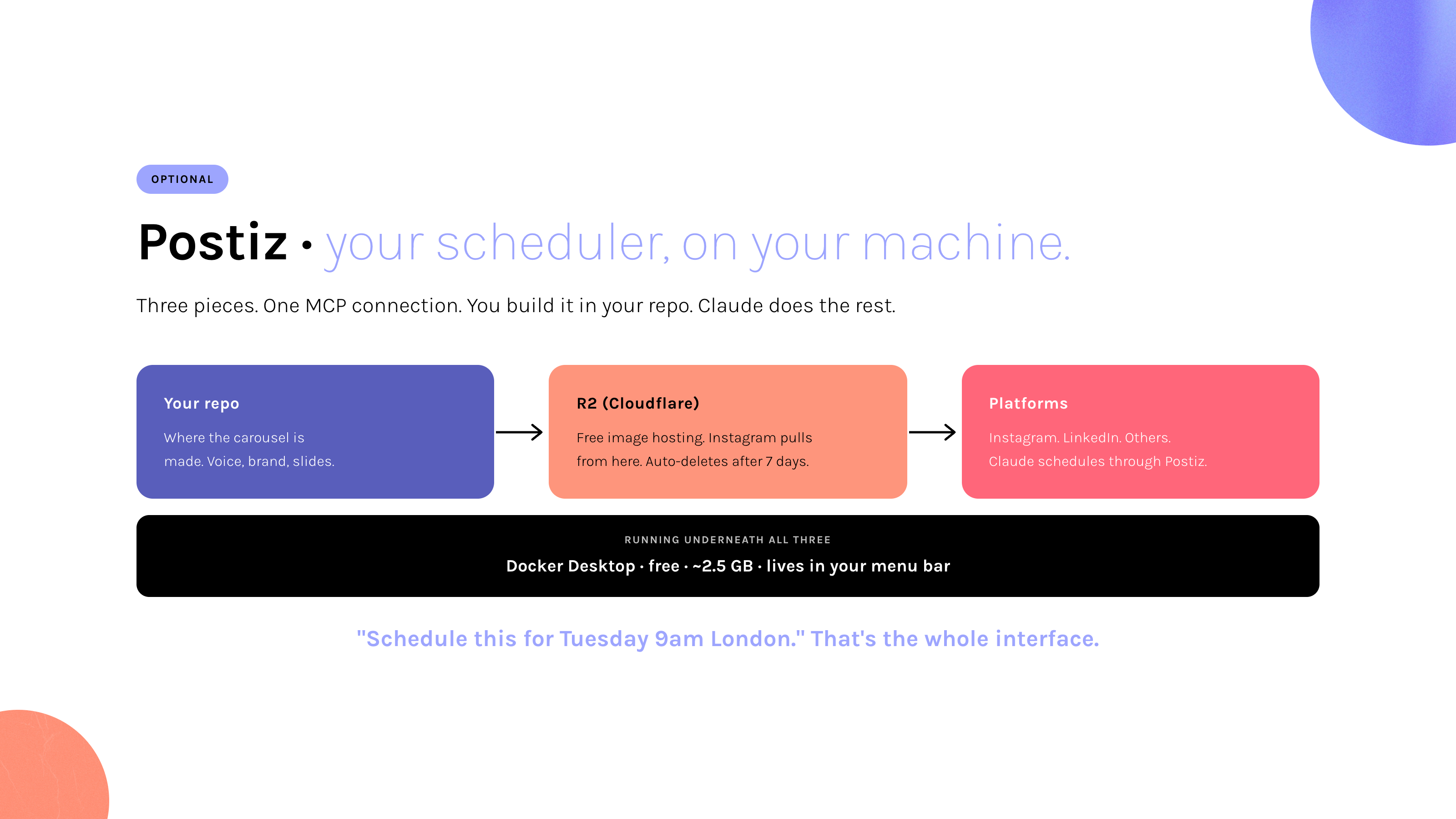
The point of bringing scheduling inside your root system is not the twelve dollars a month. It is that the schedule becomes part of your workflow. You finish a carousel in your system, you say "schedule this for Tuesday at 9am London", and Claude posts it. There is no other tab to open, no other login to remember, no separate brand voice you have to sync.
The shape of the workflow
Postiz sits between three pieces. Your system, where the content is made. Cloudflare R2, where the images live so Instagram can download them. The platforms themselves (Instagram, LinkedIn, others), where the post lands. Claude orchestrates all three through a single integration.
You build the carousel (your branded slides, your voice, your topic). Claude uploads the images to R2 and gets back public URLs. Claude schedules the post via Postiz with those URLs. Postiz fires at the scheduled time, hands the URLs to Instagram, and the post goes live. Old images auto-delete from R2 after seven days so storage never piles up.
What to ask Claude for
Once Postiz is running and your accounts are connected, the language is plain:
- "Post this carousel to Instagram now" (with the image files)
- "Schedule a LinkedIn post for Monday at 9am London"
- "Draft an Instagram carousel about [topic] and queue it for Friday"
- "Show me my connected accounts"
- "What's scheduled for next week?"
You never visit the Postiz dashboard after setup. It runs in the background. Claude is the only interface you touch.
Before you decide
Postiz is not for everyone. Self-hosting means a one-time install and you own the result. The install asks for these things, so read the list before you commit your evening to it.
- A computer with at least 5 GB free disk space and 8 GB RAM
- Docker Desktop, a free app that runs Postiz on your machine in the background. You'll install it as the first step of the setup. Docker Desktop itself is around 2.5 GB on disk and uses 2 to 4 GB of RAM while running. Postiz containers add another 2 to 3 GB on disk.
- A Facebook account, a Facebook Page for your business, and an Instagram Professional or Creator account linked to that Page
- A Cloudflare account (free, but a payment card is required on file, same as AWS)
- If you also want LinkedIn: a LinkedIn account and a Company Page you own
- 30 to 45 minutes of focused time for Instagram only, 60 to 90 minutes for Instagram and LinkedIn together (plus a wait for LinkedIn to approve their Advertising API, which can take hours to days)
If any of those is a hard no, the paid alternative is fine. Buffer, Later, or Hootsuite all do the same job from someone else's cloud for about €10 to €20 per month for Instagram plus LinkedIn. You skip the install. They hold your queue. You pay rent every month and they own the schedule. Many solopreneurs run that way for years. The choice is whether you want to own the scheduler or rent it.
A moment with this
Open the platform you currently use to schedule posts (or the tab where you manually post). How many minutes a week does the context-switching alone cost you? How much do you pay every month for the privilege? Now picture saying one sentence to Claude instead. That gap is what this lesson is buying back, whether you go the Postiz path or stay on the paid one.
Go deeper
Postiz needs Docker, an OAuth app for each platform, and Cloudflare R2 for image hosting. All of that is documented in guides/77-postiz-social-media.md. Tell Claude: "Walk me through Guide 77. Run each step with me. Stop after Docker is up so I can verify before we connect Instagram."
Publish long-form to YouTube
Postiz is for short social posts. To put a full video on YouTube with its own thumbnail, and schedule it to go public on your own timeline, your system has a direct uploader. It uses your own YouTube account, publishes only when you say so, and nothing runs in the background. The one-time setup is about 15 minutes and lives in guides/82b-youtube-publishing.md. Tell Claude: "Walk me through the YouTube publishing guide (82b-youtube-publishing) and set it up with me."
Tip: the same login reads your channel too. Add your YouTube comments to your morning sweep so you finally see what counts, YouTube never notifies you. Once it is set up, say: "add my YouTube pulse to my morning sweep."
Other connectors and what to do with them 🔌
Postiz is a connector. So is Stripe. So is Resend. So is your Supabase database. A connector is just a way for Claude to read or write data somewhere outside this folder. The value is never in the connector itself. It is in the question you ask of the data flowing through it.
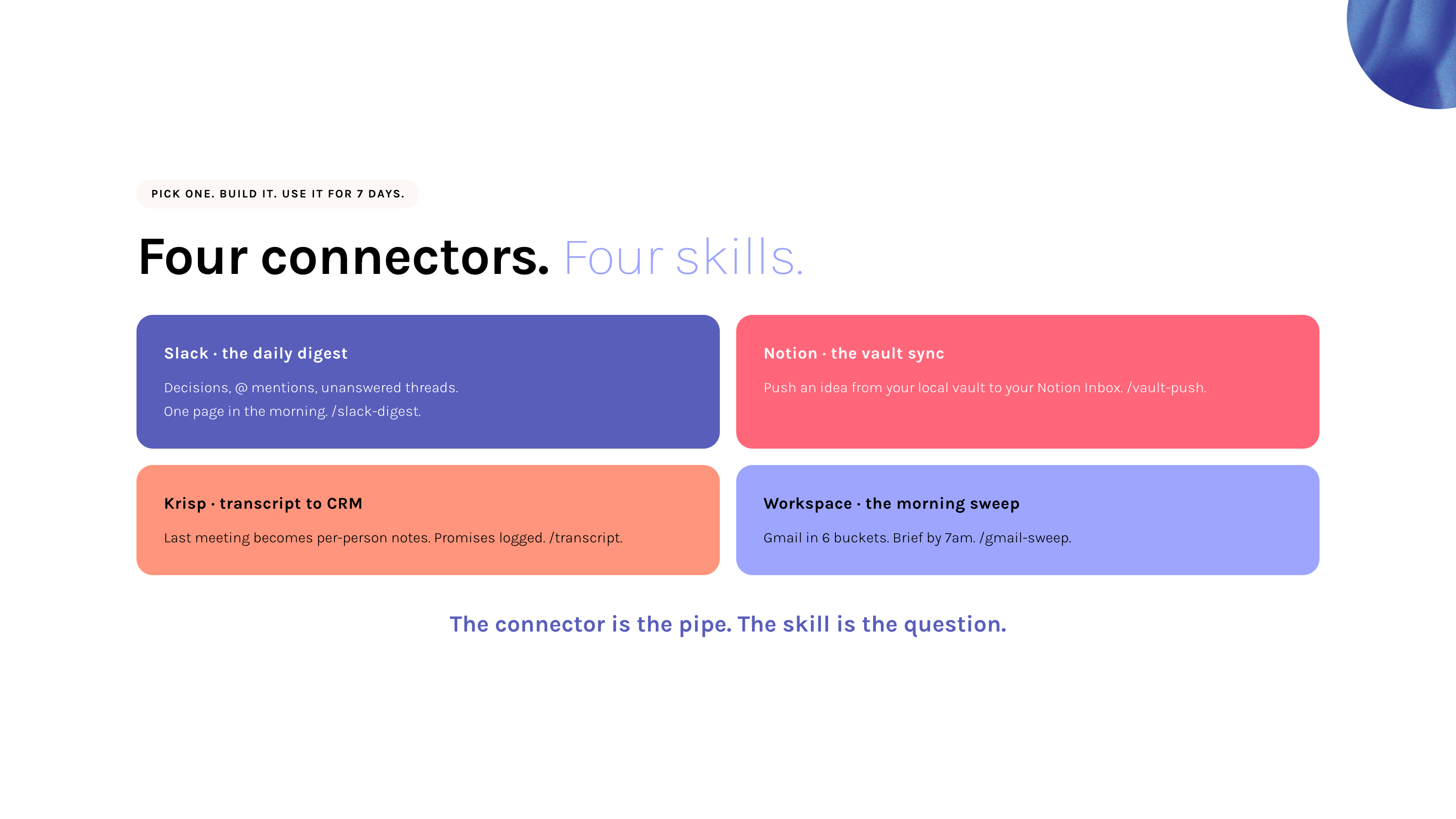
Slack, Notion, Krisp, and Google Workspace are the four most useful connectors for a solopreneur after the basics are in place. Each one becomes useful the moment you write a small skill that asks one specific question of it. The connector is the pipe. The skill is the question. The output is the thing that changes how your day goes.
This lesson takes each of the four in turn. For each, what it gives you, what skill is worth building first, and what to ask Claude for once it is connected. Setup steps live in the guides linked at the bottom.
Slack, the daily digest
If your team or community lives in Slack, the channels you should be reading are not the ones loudest in the morning. They are the ones where a decision was quietly made, a question was asked that nobody answered, or your name was mentioned in a thread you missed. Generic Slack reading does not surface those. A digest skill does.
The skill reads the channels you care about over the last 24 hours and produces one short page: decisions made, action items assigned, mentions of your name, unanswered questions, announcements you missed. Five buckets. Five lines per channel maximum. The point is that you scan one page and know what to engage with, instead of scrolling channels.
Ask Claude: "Build me a /slack-digest skill that scans #team, #wins, and #sales over the last day and gives me decisions, mentions, and unanswered questions."
Notion, the vault sync
Your content vault is local for a reason. It is fast, it is yours, it is part of your system. But sometimes a collaborator needs to see what is in it, or you want to capture an idea from your phone where your system is not. Notion is good at the surface layer: a shared database, friendly to read, easy to filter, accessible from any device.
The vault-sync skill takes any new idea from your local vault and pushes it to a Notion "Ideas Inbox" database with a title, the full body, a date, and a source tag. From Notion, anyone you have given access can read it, comment, add tags. The local vault stays the source of truth. Notion is the window into it.
Ask Claude: "Push this idea to my Notion Ideas Inbox", or build the skill: "Create a /vault-push skill that takes a content idea and adds it to my Notion database with today's date and source: vault-push."
Krisp, the transcript that becomes CRM updates
The hardest part of a call is not the call. It is the half hour after, when you have to write down what was discussed, what you promised, what they shared about their work, and what the next step is. Most of that information is in the transcript already. Krisp captures it. The /transcript skill turns it into the work.
The skill pulls your last meeting, identifies who you spoke with, looks them up in your CRM by email (not by first name, never by first name alone), extracts the key topics they shared, the decisions made, the promises both sides made, and the next step. It writes the summary to their CRM card, appends a meeting log to your daily log, and queues the promises in the CRM promises field. The whole post-call admin disappears.
Ask Claude: "Run /transcript on my last call and update Sarah's CRM card. Show me what you wrote before I confirm."
Google Workspace, the morning sweep
Your inbox is the place where money lands (Stripe receipts), new people arrive (signups), conversations start (replies), and your day gets reshaped (calendar invites). Reading it by scrolling top to bottom is the wrong shape. A sweep skill categorizes the morning's email into the buckets you actually care about, then prints a one-page brief.
The /gmail-sweep skill categorizes new mail into Stripe receipts, signups, leads, replies you owe within 48 hours, calendar invites, and newsletters (auto-labeled, not auto-archived until you trust it). One line per item with sender and the first useful phrase. A final tally line tells you what got swept. Calendar pulse goes one layer up: the week ahead with energy mapping so you can see where the back-to-back days are before they arrive.
Ask Claude: "Run /gmail-sweep for the last 24 hours and give me the brief." Or: "Build me a /calendar-pulse for next week. Tell me which days are heavy and which mornings I have free."
Money admin: invoices and the books
The same Workspace connection that reads your inbox also handles the back-office work you keep putting off. Two skills, both boring on purpose, because boring is exactly what is safe to hand over.
/invoice-system turns a client and a billing period into a finished, correctly numbered PDF invoice in your branding, with the send email drafted ready for one last read. It never sends on its own; you confirm the numbers, you hit send. The first run reads your business details from your system and asks only for what it cannot find, your bank line and tax number, then every month after is three confirmations.
/accounting-sweep files the expense invoices you receive. Each run it sweeps your inbox and saves the PDFs by month, on trust not keywords: senders you have approved file themselves, and an unknown sender waits for your yes before anything opens. It reads the date printed on each invoice so arrears billers land in the right month, dedupes so it never files one twice, and hands you a short list of what only you can fetch. It needs the Gmail integration that can download attachments, because the app connector cannot. It gathers and organizes; it never guesses a number or files your taxes. Together: one drafts the invoices you send, the other files the ones you receive.
Ask Claude: "Run /invoice-system for [client] this month" or "Do my accounting sweep for last month."
The pattern
All four connectors follow the same shape. Connect once at claude.ai/customize/connectors (the easy path) or via a self-hosted integration server (more setup, more control). Then write a skill that asks one specific question of the data. Iterate the skill weekly. Within a month each one is a daily tool you cannot remember life without.
Do not connect all four today. Pick the one whose problem irritates you most right now. Build that skill. Use it for seven days. Add the next one only when the first feels like a tool you own.
A moment with this
Of the four, which one solves a problem you had today? Be honest. If you scrolled Slack for twenty minutes and missed something important, that is the answer. If you ended a call and forgot to update anything anywhere, that is the answer. Pick the one whose pain you can name, and build that skill first. Skip the rest for now.
Go deeper
Setup steps and worked-example skills for each connector live in guides/78-slack-connector.md, guides/79-notion-connector.md, guides/80-krisp-connector.md, guides/81-google-workspace-connector.md. Tell Claude: "Walk me through Guide [78/79/80/81]. Connect the service, then write the worked-example skill with me."
Scheduled work that runs without you ⏰
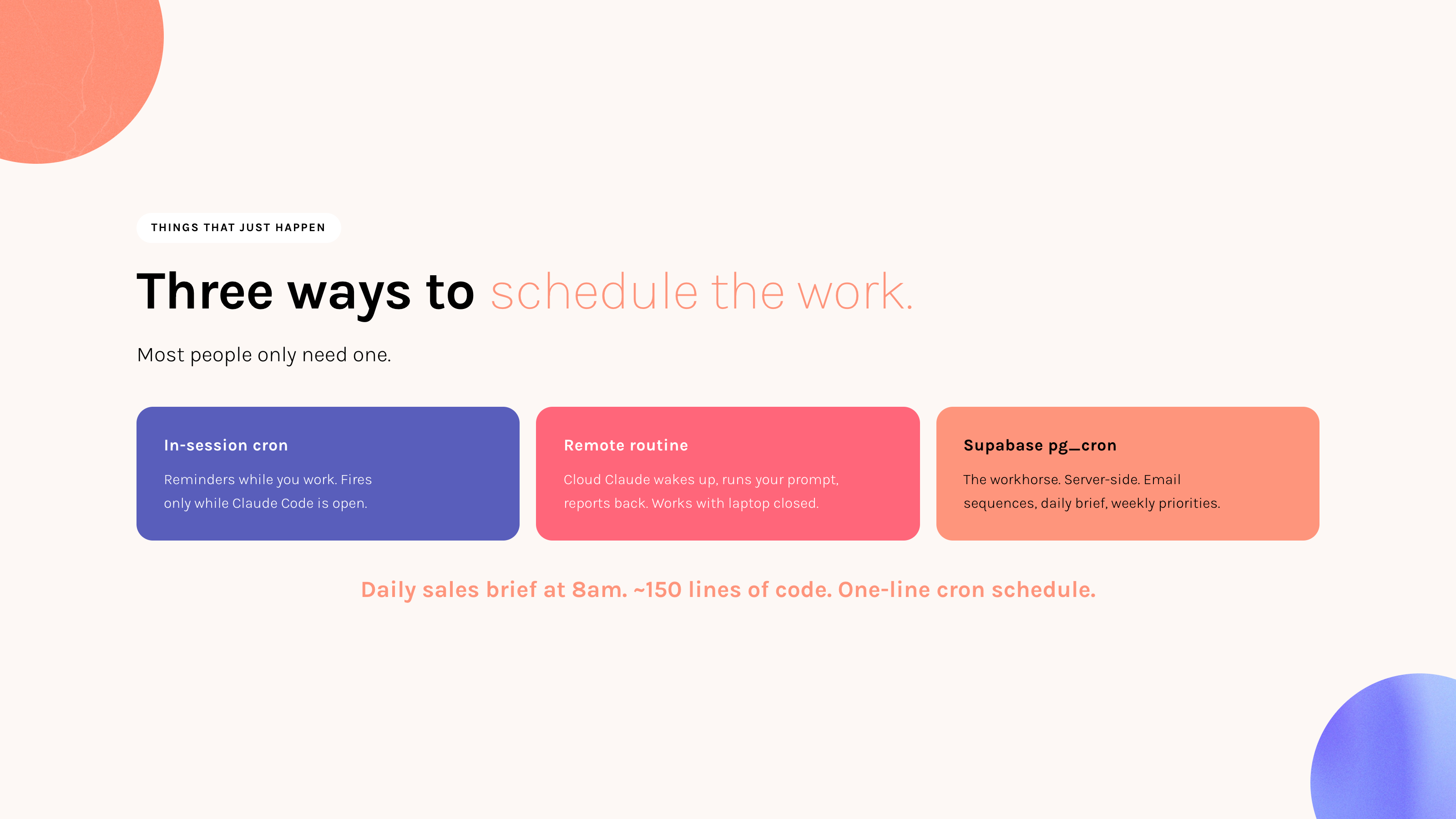
Skills are things you call. Scheduled work is things that just happen. A morning brief lands in your inbox before you sit down. A weekly digest arrives Sunday night. A daily Gmail sweep happens at 7am whether your laptop is on or off.
This is the layer of automation that runs on its own clock. There are three different ways to schedule work in your stack. Each fits a different use case. Most people only need one.
Scheduling is the "when" layer. For the "how big" layer, which job needs a skill, a helper, a team, or a workflow, see Skills, helpers, teams, and workflows.
The honest part, first
Claude in a session cannot remember between sessions, and it cannot wake itself up. It is also genuinely weak at time: even with the date in front of it, a vague future date slips past. So do not rely on it to remind you of anything. Every reliable reminder is one of the real mechanisms below, running on a timer whether or not you open the terminal.
There are two kinds of thing you can schedule. Work that runs on its own and quietly updates your system (a freshness scan, a weekly prep). And something that has to reach you on a schedule (a morning brief, a Monday email, a quarterly nudge). The second kind always needs a real delivery channel: your own backend email, a calendar event, or a phone reminder. If the honest answer to "will this happen on its own?" is "only if I open the terminal," it is not set up yet.
Option 1: In-session crons (the simplest)
Claude Code has a built-in scheduling tool. You ask Claude: "remind me at 6pm every day to wrap up." Claude creates a job that fires at 6pm and sends you a desktop notification. If you have Remote Control connected, it pushes to your phone too.
The catch: this only works while Claude Code is open and idle on your machine. If your laptop is closed at the trigger time, nothing fires. Recurring jobs auto-expire after 7 days, so you'll need to re-create them.
Best for
Reminders during your active work day. Polling a build. Checking on a long-running task. Watching for a state change while you do other work.
How to set up
Just ask Claude in plain language: "Remind me at 6pm every day to wrap up" or "check the deploy every 5 minutes." Claude handles the cron syntax for you.
Option 2: Remote Claude routines (cloud-based)
Anthropic also runs scheduled Claude agents on their cloud infrastructure. You schedule a routine, and a fresh remote Claude session spins up at the trigger time, runs your prompt, and reports back via the Claude.ai inbox or mobile app. Works even when your laptop is off.
The catch: the remote Claude has no access to your local machine or your local system files. It works through the connectors you authorize at claude.ai/customize/connectors (Gmail, Calendar, Slack, and so on). So a cloud routine is only as capable as the connectors you give it, which makes it a fit for inbox and calendar work, not for anything that needs your local files.
Best for
Daily standups, weekly digests, inbox and calendar briefs. Anything where you want a remote Claude to think on your behalf through your connectors and report back.
How to set up
Use the /schedule skill in Claude Code. It walks you through the prompt, schedule, and connectors.
Option 3: Supabase pg_cron (server-side, the workhorse)
Your Supabase database has a built-in scheduler called pg_cron. You can schedule any function to run at any interval, server-side, completely independent of Claude or your laptop. This is what runs the email sequences, the relationship score decay, and the weekly cooling-contact alerts in your stack already.
The pattern: write a Supabase edge function that does the work, then schedule it with a cron expression. The edge function can read your tables, send emails via Resend, post to Slack, hit external APIs. Anything code can do.
Best for
Daily morning briefs from your business data. Weekly priority emails. Hourly email sequence sends. Nightly cleanup tasks. Anything that needs to fire reliably without you, reading from your own database.
How to set up
Ask Claude: "Set up a daily morning brief that emails me at 8am with [the things you want]." Claude writes the edge function, schedules it via pg_cron, and tests it. The hardest part is deciding what to include.
A lighter option: a reminder on your phone
For a simple personal nudge, the Claude app on your phone can set the reminder for you, no backend needed. On iPhone, ask the app to remind you, and it adds the item to your Reminders, so iOS notifies you at the time. On Android, it sets a clock alarm instead, since the Reminders route is iOS only for now. Good for one-off and personal reminders. For anything built from your business data, use one of the three above.
Which one to use
| Use case | Best option |
|---|---|
| Reminder while you're working | In-session cron |
| Daily morning brief from your business data | Supabase pg_cron + edge function + Resend |
| Weekly digest with light analysis | Supabase pg_cron, OR remote routine if you want Claude to write it |
| "Summarize my inbox" each morning | Remote Claude routine |
| Hourly email sequence processor | Supabase pg_cron (already running in your stack) |
A worked example: the daily sales brief
Most useful starting point for solopreneurs: a daily sales brief that lands in your inbox at 8am. Not a to-do list (that's already overwhelming). Specifically the sales signal:
Plus a weekly priority email on Mondays at 7am: top cooling contacts to reach out to, promises due this week, pipeline movement targets.
This whole thing is a Supabase edge function (~150 lines) plus a one-line pg_cron schedule. Once it's running, it costs you nothing in attention. It just shows up.
Once you know what you want in your daily brief, say: "Build me a daily sales brief edge function that runs at 8am and emails me [your list]." Claude writes the SQL queries, the edge function, deploys it, schedules it via pg_cron, and tests it. The hardest part is your list, not the code.
A note on auth (for Phase 2 work)
The simple version of the morning brief uses only your own Supabase data: purchases, contacts, promises, leads. That works today with no extra setup.
If you want the brief to also include Gmail, Calendar, or Cal.com data, each external service needs OAuth credentials stored as Supabase secrets. That's a one-time auth setup per service. Defer this until the simpler version proves itself useful.
A moment with this
If a single email landed in your inbox at 8am every morning, what three or four numbers would change how you spent the day? Not what's nice-to-know. What would actually shift a decision. Those are the lines your brief should contain. Everything else is noise.
Set it up with a guide: the Routine Builder
Everything above is the how. The Routine Builder is the add-on that does it with you. You hand it to your system, it looks at what you already do every day and week, helps you pick what is actually worth automating, and sets each one up using the mechanisms you just saw. It builds on what you already have, and it never promises a channel you have not built.
1. Add it to your system. Download it, drag it into your root system, and say "add the Routine Builder to my system." Two minutes, and nothing you have gets overwritten.
2. It scans, then asks. It reads your skills, your daily and weekly rhythms, and your follow-ups, finds everything that repeats, then asks which ones you forget, which have a fixed day, and how you want to be reached.
3. It builds them one at a time. For each one you approve, it sets up a routine, a calendar event, or a scheduled email, tells you exactly when it runs and where the output lands, and shows you how to change it or turn it off.
Already added it? Open Claude in your system and say "let's set up my routines." Or paste the prompt below to run the same thing right now.
Paste to your Claude
I want to turn the recurring parts of my system into routines and scheduled agents. Work through this with me in four steps. Do not create anything until Step 4, and get my approval on each one before you build it.

Step 1 - Scan my system, and check what I actually have set up. First, list everything that runs on a rhythm or repeats: my skills and command files, my morning, evening, save, and weekly planning skills, my daily and weekly task lists, my follow-ups, my content queue, and anything that says every day, week, month, or quarter. For each, tell me what it is, how often it runs, and whether it depends on me opening the terminal. Then check which delivery channels I actually have, do not assume: do I have a backend with edge functions and any existing cron jobs (if so, read one so you copy my real pattern), is my email sending set up, is my calendar connected, and am I on iPhone or Android. Report what repeats and what I can actually deliver through today.

Step 2 - Interview me to find the best candidates. Ask me these one at a time and wait for my answer:
- Which of these do I most often forget, do late, or wish would just show up on its own?
- Which ones happen at a fixed time or on a fixed day?
- For each, does the result need to reach me as a human, or can it just run quietly and update my system?
- What actually happens if one gets missed? What is high-stakes, what is minor?
- How do I want to be reached: an email, a calendar event, or a reminder on my phone?

Step 3 - Recommend. Sort every candidate into three buckets and show me the ranked list: runs on its own (a routine or a server-side job), reaches me (mapped to a channel I actually have: my backend email, a calendar event, or an app reminder), and leave manual. Never map a reminder to a channel I do not have. Rank them so we set up the top two or three first, not all at once.

Step 4 - Build them one at a time, with my approval, using my real setup. For a scheduled email, follow the cron pattern already in my system: write or extend a small edge function and schedule it with a cron job at the time I chose, matching my existing structure and auth, then deploy and test it once so I see a real email arrive. For a calendar event, create it at the time I chose. For an app reminder, walk me through setting it in the Claude app on my phone. Be honest that this is a real scheduled mechanism on a timer, not you promising to remember, tell me exactly when it fires and where it lands, and show me how to edit or turn it off. Show me the plan for each before you create it, and build them one at a time so I can see each one working.
Or start smaller, with one:
Get the Routine Builder
It ships in your Module 8 pack, or grab it on its own below. Two plain-language files: SETUP-GUIDE.md (how to add it, two minutes, nothing overwritten) and routine-builder.md (the protocol it runs with you).
What to keep, what to ditch, what to build 🧭
You finish a module like the last one with a small thrill (Postiz from the terminal, edge functions running at 7am), and then a quieter question lands. If you can build this much yourself, what else are you paying for that you no longer need? And what should you keep paying for, because someone else solved it better than you ever will?
The decision is the same every time, and it sits in three buckets.
Keep
Tools that solve a problem you do not want to own. Stripe handles cards and tax compliance across 40 countries; nobody serious rebuilds Stripe. Resend deliverability; nobody serious rebuilds an SMTP reputation. The platforms your customers already live in (LinkedIn, Instagram, Substack) until your audience moves. The hosting provider that runs your static files. Anything where the work-to-replace cost is bigger than five years of subscription.
The test: would I rebuild this if it disappeared tomorrow? If the answer is no, keep paying. The fee is rent on someone else's hard problem.
Ditch
Tools that own data that should be yours, charge per seat for one user, or sit between you and your customers when there is no real reason for them to. Per-seat CRMs when you are one person. Newsletter platforms you cannot leave with your subscriber list intact. Form builders that own the responses. Scheduling tools that lock your bookings behind a paywall. Anything where you are renting back access to your own customers' information.
The test: if I cancelled this tomorrow, can I take my data with me, or do I lose it? If you lose it, you do not own your business, the vendor does. Migrate first, then cancel.
Build
Wrappers around a workflow you already do, that you want to do faster and with your own shape. Your CRM (you know your relationships, no SaaS does). Your content engine (your voice, your audience, your bank of past posts). Your dashboard (your numbers, your rhythm). Your morning brief (your priorities, your business data). Anything where the shape of the thing is your shape, and a generic tool would force you to bend.
The test: am I editing the tool to fit my work, or editing my work to fit the tool? If you are bending, build. The first version is rough and that is the point. You iterate it weekly. By month three it is exactly the tool you needed all along.
A moment with this
Open your bank statement or wherever your subscriptions live. List the three you would never cancel (Keep), the three you have not opened in 90 days (Ditch), and the one workflow you keep doing by hand that should be a skill (Build). Don't act on it today. Sit with the list overnight, then look at it again in the morning.
Go deeper
When you have your list, the next lesson is the audit that proves what you decided to keep actually works. Tell Claude: "Walk me through my Keep/Ditch/Build list. For each Keep, run the audit checks. For each Build, draft a skill outline."
Skills, helpers, teams, and workflows 🧩
By now your system does real work. You have built skills, connected your tools, and started to hear words like helpers, teams, and workflows without a clear picture of when each one earns its place. This lesson is the map that puts all of it in order, so when a job lands on your desk you know which size of help to reach for. Most of the time the answer is small. Once in a while it is not, and there is now a tool for that too.
You set up and run all of these from the terminal, the same Claude Code you already use. There is no separate app to install.
There are only a handful of ways to hand a job to your system. They line up from the smallest everyday ask to the rare, very large job. The whole skill is matching the size of the help to the size of the job, and not reaching for something bigger than you need.
The ways to hand off a job
Smallest to biggest, with where you have already met each one.
| The move | What it is | Reach for it when | Where you have met it |
|---|---|---|---|
| Just ask | Claude does the job right there in your chat while you watch each step. | It is one thing, or you want to see it happen. | Since your first conversation. |
| A skill | A short recipe you saved once, so it runs the same way every time you type its name. | You have done the same task three times and want a one word trigger. | The Custom skills lesson, and your skills pack. |
| A helper | Claude sends one helper off to do a side job in its own space and brings back just the answer, so your main chat stays clean. | A long search or a big file would clutter the conversation. | New here. Some of your skills already use them quietly. |
| A team | A few helpers working from one shared to-do list, with a lead keeping them in step. | A job splits into a few parts that must stay coordinated. | New here. The rung above a single helper. |
| A workflow | Claude writes itself a short recipe, and a runner carries it out in the background across dozens or hundreds of pieces. It can even have the helpers check each other's work. | A job is too big for a few helpers, or you want the findings double-checked. | New. Right here. |
| A routine | Any of the above, set to run on a clock on Anthropic's servers, even while your laptop is closed. | The job should just happen on time, without you starting it. | The Scheduled work lesson. |
The first five are about how big the job is. The last one, a routine, is about when it runs. You can put any of the first five on a routine.
The clearest way to tell them apart is one question: who is keeping track of the steps? When you just ask, you are. With a skill, Claude is, by following the recipe you wrote. With helpers and teams, Claude is, deciding each step as it goes. With a workflow, a short written recipe is, which is exactly why it can run far wider than a single conversation. Who holds the plan tells you which rung you are on.
Helpers and teams, up close
A helper, sometimes called a sub-agent, is a single Claude sent off to do one focused job in its own space, so the result comes back clean without burying your main chat. Most of the time you do not ask for one by name. When a task is heavy, like reading a sixty page report or searching across hundreds of files, Claude often sends a helper on its own and shows you only what it found. You can also ask outright: "send a helper to read this contract and pull out the three dates I need." Some of your own skills already work this way under the hood, sending out a handful of helpers to check your system from several angles at once.
A team is a few of those helpers working from one shared list, with one of them leading and keeping them in step. You reach for a team when a job splits into parts that have to stay coordinated: "set up a small team, one to draft the page, one to check it against my brand rules, one to format it." Claude hands out the parts and pulls the work back together. Teams are still an experimental feature, so you switch them on once before the first use. For most bigger jobs a helper or two is plenty, and a team is the step you take only when the parts genuinely need a leader.
A workflow is simply the next rung up from a team, for when even a coordinated handful would be too small or too hard to keep in order, and the job runs to dozens or hundreds of pieces.
The new rung: workflows
A workflow is for the rare big job with many separate pieces. Instead of working through them one at a time in your chat, Claude writes itself a short recipe and a runner carries it out in the background. It can have many helpers going at once and work through hundreds of pieces in a single run, while your chat stays free for other things. At the end you get one finished result: a report, a cleaned-up set of records, a batch of updated pages. Because a written recipe holds the plan, a workflow can also do something a single pass cannot. It can have independent helpers check each other's findings before anything reaches you, so the answer is more trustworthy.
Claude Code already ships with one workflow you can try: /deep-research. Workflows are still a new feature, so the first time you may need to switch them on. Run /config and look for the workflows row, or simply ask Claude to turn them on. Then give /deep-research a real question, for example "what do comparable small group programs in my field charge, and how are they positioned", and it fans out across many sources, checks them against each other, and hands you one report with its sources listed. Running it once is the safest way to feel what a workflow does.
How you start one
You ask in plain words. Say "use a workflow to ..." or add the word ultracode to your request. Claude plans the job into stages and shows you that plan first. You read the stages, check they match what you meant, and only then does it run. Nothing is a surprise, because you approve the plan before it touches anything. To watch it work, type /workflows. You do not have to watch. Go do other work and come back. When a run does what you wanted, open /workflows and press s to save it as your own command, like /quarterly-content-audit. Next quarter it is one word.
One word to untangle
Earlier in this module, in the Workflow automation lesson, we used "workflow" in the loose, everyday sense: a chain of skills you run yourself, like your Friday content push. That meaning is still good. There is also a specific Claude Code feature named Workflows, the one in this lesson, which is the recipe-driven, run-many-helpers tool. Same word, two sizes. Ask yourself whether you mean a chain of skills you trigger, or a recipe that runs hundreds of helpers on its own.
Which to reach for
Stay low on the ladder. Almost everything you do is a quick ask or a skill. Reach for a helper when a job is heavy enough to clutter your chat, a team when it splits into coordinated parts, and a workflow only for the rare, genuinely large job: a full review of everything you published this quarter, a pass across your whole client list, a real piece of market research. If you are not sure, you do not need a workflow. The newest tool is not the right tool just because it is new. Workflows are also still an early release, so treat your first runs as experiments and read the result before you act on it.
Try this
Run /deep-research once on a real question your business has. A competitor's pricing, a market trend, whether there is room for a new offer. Watch it in /workflows, then read the report. One real run teaches you more than any explanation.
Full system audit (mandatory)
Before you call Part 2 done, audit the whole system. There are two ways to run it, and you want both: a fast workflow that sweeps everything at once, and a manual deep pass that tests your live infrastructure. Between them they catch whatever was skipped, misconfigured, or left half-done before a customer finds it.
The fast pass: run /system-audit
This is a workflow, the kind you met in the previous lesson. It sends nine specialists across your system at once, each checking one area, and hands you a single graded report (green, yellow, or red) with a "fix first" list. It covers your installs and integrations, your database and security, and your legal and GDPR pages, plus the things a manual pass usually misses: documentation that no longer matches reality, broken internal links, brand and design slips, and places where one part of your system contradicts another. It runs in the background while you keep working, and because it ships in your system at .claude/workflows/ it is already in your command list. Type /system-audit, or /system-audit security to check a single area. Workflows are a new feature, so if it does not run, turn them on first (see the previous lesson).
The deep pass: guide 82
The workflow reads and reasons over your system. The one thing it cannot do from reading alone is fire live tests at your running services. Guide 82 does: copy-paste commands that actually hit your endpoints, check your CORS, and run a real test transaction through Stripe. Run the workflow first for the broad picture, then walk guide 82 for the hands-on infrastructure checks.
Together they are your graduation gate. If anything comes back red, fix it first. Re-run after any major addition, and before sharing your system with anyone.
Layer 1, tools and infrastructure exist
- Install audit (brew, node, claude, supabase, stripe)
- Integration audit (configured + loading + credentials work)
- Supabase audit (project linked, secrets, migrations, edge functions)
- Hosting + domain audit (resolves, SSL, deploy.sh, shared partials load)
Layer 2, configuration is correct
- Edge function security (auth, CORS, signatures, template bundling)
- Database security (RLS on every PII table, no service_role exposure, no admin emails in client JS)
- CRM correctness (dedup, RPC lookups, JSONB merge writes)
- Email (List-Unsubscribe header, HMAC unsubscribe, deliverability)
- Stripe (webhook live, signature verification, test transaction)
- Website + course platform (shared partials, OG renders, 404, mobile, demo-blur)
- GDPR + legal (privacy policy, terms, consent log, data export, deletion)
Go deeper
Guide 82 (system audit) walks the full checklist with copy-paste curl commands, exact SQL, and the top ten common pitfalls. Say to Claude: "Walk me through guide 82, full system audit. Go section by section, run the check, tell me what passed, what failed, and what to fix first."
Your money, handled ❤️
Two kinds of money move through your business, and both make the same small mess: the invoices you receive and have to keep, and the invoices you send to get paid. Neither is hard. They are just easy to let pile up until a deadline turns them into an evening of hunting. This lesson hands both to your system as one composed workflow, the kind you met in the workflow lesson: the gathering runs quietly on its own, and you keep the few decisions that actually need you.
The money you receive: caught every morning
The sweep runs as a step in your morning routine, not a month-end job. Each morning, while it is already reading your inbox, it picks out any expense invoice or receipt that arrived, saves the PDF, and files it into one folder sorted by month. It files by the date printed on the invoice, so a vendor who bills a month behind still lands in the right place. Do this every day and month-end stops being a hunt. When your accounting deadline comes, everything is already in one place, already sorted, and you are opening a folder that filled itself instead of digging through your inbox at 11pm the night before.
Think it through before you turn it on
The setup is a short conversation, and it asks the things only you can answer. Sit with these three before you switch it on.
Who do you actually pay?
Open your last statement, a full quarter is ideal, and read the recurring charges. Each one is a vendor you trust, and that list is what lets the sweep file them without asking.
What about a sender you have never paid?
This is the safety line. Approved senders file themselves, and a stranger's invoice waits for your yes, so a phishing attachment never opens on your behalf. The safest default is always ask.
Where do your books live?
In a folder kept off anything shared or synced. It holds your financial records, so it stays on your own machine.
One thing to set up first
The sweep saves the PDF out of the email, so it needs the Gmail integration that can download attachments (the self-hosted one from the connectors lesson), not the app connector, which can read your mail but not save a file. Set that up once and the sweep works from then on.
The money you send: the invoicer
A sale completes. The invoicer reads it, builds an invoice that looks like you, and emails it to you to check. You send it to the customer from your own hands, one at a time, or keep it as a record and send nothing. Nothing reaches a customer on its own.
The one thing to decide here is your tax. You write your own rules, by default there are none, and the invoicer only ever does what you told it. That decision is yours, and it is worth confirming with an accountant in your own country.
Why this is the composed-workflow lesson
Look at where each tool acts and where it waits. Each one acts on its own only while it is gathering, building, and filing. It waits for you at every moment that carries weight: opening a stranger's file, sending to a customer, setting any number at all. You stay in the loop everywhere it matters, and what leaves is the part that used to eat your evening.
Runs on its own
Reading the inbox, saving PDFs, sorting by month, building the invoice draft.
Waits for you
Opening a stranger's file, sending to a customer, setting any tax or number.
A moment with this
Which half of your money admin do you actually dread: the gathering, or the deciding? Be honest about which one drains you. These tools take the gathering, every day, so the deciding is all that is left, and there is far less of it than it feels like at 11pm the night before a deadline.
Go deeper
Add the sweep to your morning routine so it files as you go. Set the invoicer running once, and every new sale drafts itself to your inbox. Both are in the Module 8 pack, with a standalone download if you want just one. Say to Claude: "do my accounting" any time to catch a month up.
Not tax advice
These tools produce and file documents. How you invoice, what tax you charge, and how you keep your books is yours to decide with a qualified accountant in your own country.
/trend-scout and /social-pulse to see what is trending and what is performing./product-carousel or one flow presentation with /flow-deck.When you finish Part 2, your business runs through your system, and the distance from Module 1 is worth telling. Five questions, and your answers come back as your story, yours to approve or edit. Record it as a short video too and you get a free 60-minute call with Maaria. 🌱
Tell your story